
Tutoring Center
Our Tutors
Connect with expert tutors for on-demand, 1-to-1 help
The expert tutors at Tutor.com can help you work through a tough homework problem,
improve your writing skills, study for a test, review a difficult concept, and so much more!
Live Tutoring Step-by-Step Guide
Step 1: Get started
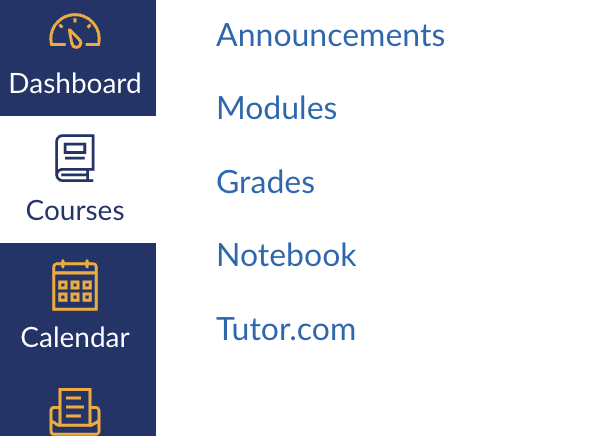
To access Tutor.com, log into Canvas, open your course, and then click the Tutor.com link on your course navigation menu

Step 2: Get the right tutor and start your session
Fill in the quick pre-session questionnaire. Using this information, we will match you with the first available tutor best qualified to assist you.
Click on the SUBMIT button to quickly connect with an incredible tutor.
Step 3: Communicate
You can use text- or voice-chat to communicate with your tutor in the online classroom. You and your tutor may also use the interactive whiteboard to share work and ideas.
All activity in the classroom is recorded for review and quality control. Transcripts will be available afterward in My Account under the Completed Sessions tab.


Step 4: Share a file
You can upload files related to your assignment to the online classroom—including documents, spreadsheets, presentation slides, screenshots, image files, and more. You and your tutor will be able to view them together during your session.
Step 5: Rate and review your session
After each session, be sure to let us know how we did! Complete the survey and share your comments. Then, you’ll have the option to play a recording of your session and email or print the chat log and whiteboards.

Additional Features

Use special tools
The classroom includes a graphing calculator, code editor, and text editor that can be used when working on subject material requiring special tools. You can open them by using the buttons above the whiteboard.
Submit your paper
The drop-off writing review service allows you to get expert help from a tutor without having to connect for a real-time session. Upload a draft of your assignment – whatever stage it is at – and get detailed feedback within a day. Retrieve your tutor’s completed review in My Account under the Completed Sessions tab.


Practice for a test
Use our practice quizzes to assess your knowledge and prepare for upcoming tests in math, science, and English. Take a quiz, review your results, and connect with a tutor to go over any questions you may have missed.
Use My Account
Access files you have saved or those you have shared in sessions with your tutors under Locker.
Reconnect with your favorite tutors or see when they are next available by clicking on Favorite Tutors.
Review previous sessions and retrieve feedback on your drop-off reviews under Completed Sessions.

Contact Us
You can reach our Front Desk Staff via our email address or phone during operating hours.
North Campus: 704-216-3594
South Campus: 704-216-3768
For additional questions or concerns, don't hesitate to get in touch with Daniel Allen at daniel.allen@rccc.edu